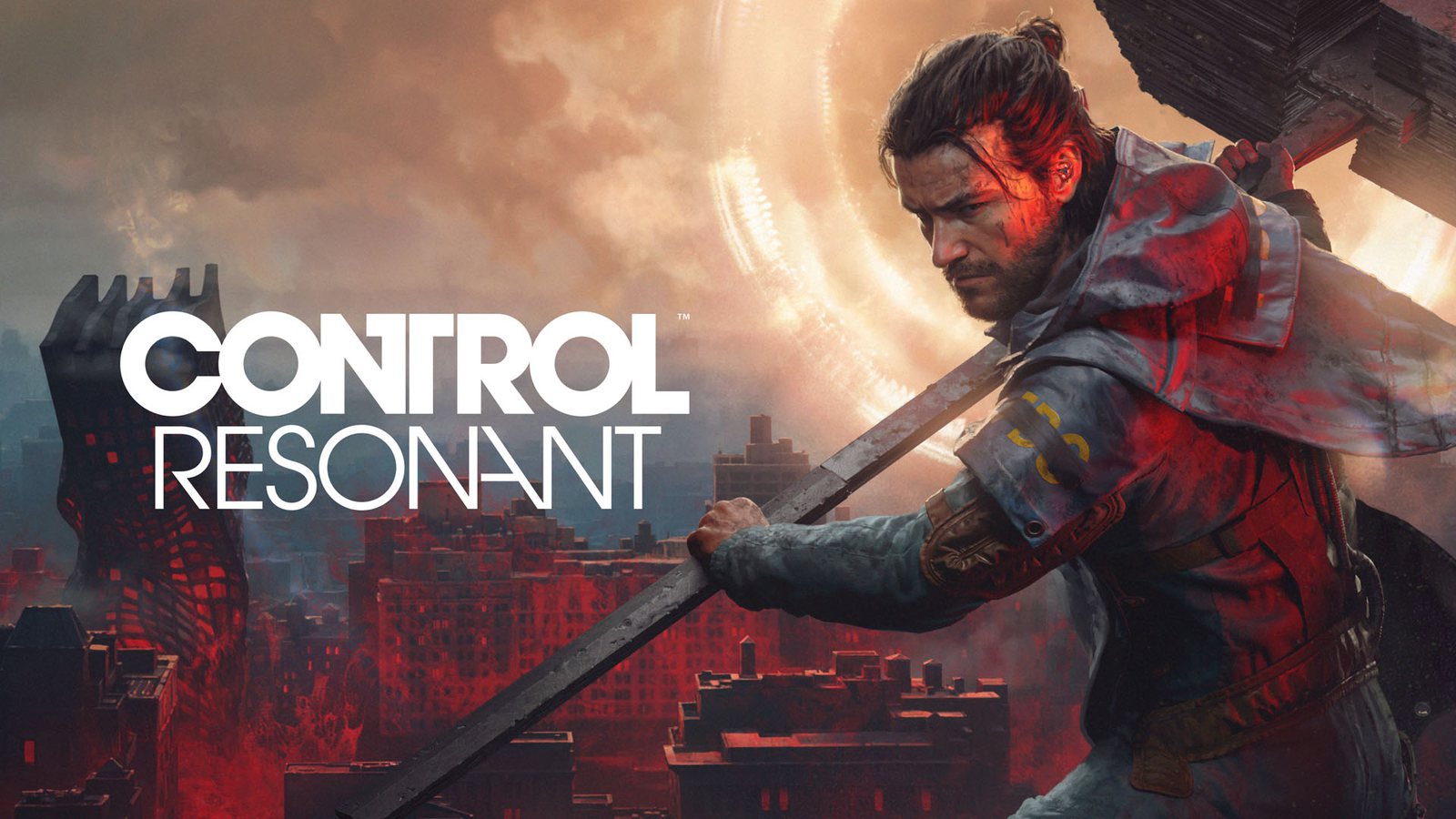
CONTROL Resonant RTX Performance Guide: Optimization Tips
Discover how to optimize your PC for CONTROL Resonant with RTX. Our expert guide covers GPU performance, DLSS settings, and ray tracing benchmarks.
Published:
Table of Contents
The wait is finally over: Remedy Entertainment’s latest title, CONTROL Resonant, has arrived, pushing the Northlight engine to its absolute limits. If you want to experience the haunting, paranatural beauty of this warped Manhattan with control resonant rtx features enabled, understanding your hardware's capabilities is the first step toward a stutter-free journey.
Optimizing for control resonant rtx isn't just about cranking settings to "Ultra." Because this title is incredibly demanding, balancing ray tracing, path tracing, and AI-powered upscaling is essential. In this guide, we dive deep into performance metrics, the best settings for various GPU tiers, and how you can achieve that elusive, buttery-smooth experience.
Understanding the Demands of CONTROL Resonant
CONTROL Resonant is a technical marvel, but it comes with a steep hardware cost. The game utilizes advanced path tracing and ray reconstruction, which can cripple even high-end systems if not managed correctly. According to community reports, the game’s VRAM usage scales aggressively, jumping from under 6 GB at lower presets to nearly 14 GB when path tracing is fully unleashed.
If you are running the game on an RTX 50-series card, you are in a prime position to leverage the latest NVIDIA technologies. However, even with flagship hardware, you need to be strategic. The game is designed with DLSS 4.5 in mind, and using these tools isn't a "cheat"—it's a requirement for high-fidelity, high-refresh-rate gameplay.
VRAM and Resolution Scaling
The relationship between your resolution and VRAM allocation is the most critical bottleneck. We have compiled data regarding how different presets impact your system's resources.
Preset
1080p VRAM
4K VRAM
Low (Handheld)
~5.8 GB
~8 GB
Ultra
~8 GB
~12 GB
Ultra + Ray Tracing
~11 GB
~14 GB
Performance Benchmarks: The RTX 50 Series
The RTX 50 series provides a substantial jump in performance, particularly when utilizing the "Dynamic Multi Frame Generation" feature. Based on our testing and recent technical reviews, here is how the lineup handles the game at 1440p without heavy RT overhead.
GPU Model
Average FPS (1440p)
Recommended Settings
RTX 5090
155+
Ultra + Ray Tracing
RTX 5080
110+
High + Ray Tracing
RTX 5070
80+
High Preset
RTX 5060
60+
Medium + DLSS Quality
GPU Bottleneck Avoidance
If you notice your framerate dipping into the 50s during intense combat sequences, do not jump to lower presets immediately. Instead, enable DLSS Quality mode. This often provides a smoother visual experience than native resolution with "Medium" settings.
Optimizing Ray Tracing and Path Tracing
Enabling ray tracing in CONTROL Resonant is transformative, but it introduces a massive performance penalty—sometimes as much as 44% compared to standard rendering. To maintain a playable frame rate, you must pair RT features with Ray Reconstruction.
Why Ray Reconstruction Matters
Ray Reconstruction (RR 4.5) replaces traditional denoisers with an AI-driven model. Not only does this improve image quality, but it also helps regain some of the performance lost by enabling path tracing.
Enable DLSS 4.5: Always ensure this is active.
Ray Reconstruction: Keep this toggled "On" to stabilize reflections and global illumination.
Frame Generation: Use 2x or 4x FG depending on your baseline FPS. For 60 FPS, 2x is optimal to avoid artifacting.
Achieving the Perfect Balance: Settings Strategy
If you are struggling to find the "sweet spot," follow this step-by-step optimization strategy. We have observed that many players mistakenly believe "High" settings are always better, but texture quality adjustments can be the key to avoiding stutters.
Step-by-Step Optimization
Step 1: Start with the High Preset. Do not jump to Ultra unless you have at least 16GB of VRAM and a 5080/5090 class card.
Step 2: Cap your frame rate. If your monitor is 144Hz, set the in-game cap to 140 to prevent frame-time spikes.
Step 3: Texture Quality. If you notice micro-stutters during movement, lower the texture quality to Medium. This keeps the game from hitting VRAM limits.
Step 4: Use DLSS Balanced or Quality. Only move to "Performance" mode if you are playing at 4K resolution.
Feature
Impact on Performance
Visual Priority
Path Tracing
Very High
Critical for Atmosphere
Ray Tracing (Low/Med)
Medium
Essential for Realism
Frame Generation
Negative Impact on Latency
High for Smoothness
DLSS Upscaling
High Gain
Essential for 4K/1440p
Community Insights and Troubleshooting
According to player experience shared in forums, the game’s "Invisibility Mode" and heavy particle effects during combat are the primary causes of FPS drops. If you find your system struggling when the screen gets busy, disabling aggressive Frame Generation settings (like 6x) can help prevent the visual artifacts that sometimes appear during rapid camera movement.
Furthermore, ensure you have the latest Game Ready Drivers installed. NVIDIA often releases specific patches for their "bundle" titles that address micro-stuttering and stability issues that appear shortly after launch.
Artifacting Alerts
High-level Frame Generation (4x or 6x) can introduce ghosting artifacts in fast-paced scenes. Stick to 2x for a consistent, high-fidelity experience without visual distortion.
Final Thoughts on PC Readiness
CONTROL Resonant is a showcase title. It is built to push modern hardware, and while it may seem demanding, the visual return on investment is unmatched. Whether you are rocking an RTX 5090 or a more modest mid-range card, the combination of DLSS, Ray Reconstruction, and careful preset management will ensure you can experience Dylan Faden's story without compromise.
If you are looking to upgrade your rig to handle this game, check out the Official Control Resonant Bundle details on Steam to see which RTX hardware qualifies for the game promotion.
Frequently Asked Questions (FAQ)
Q: Does CONTROL Resonant require an RTX 50 series card?
A: No, but the game is optimized for modern RTX architecture. Players can run the game on older hardware, but control resonant rtx features like advanced path tracing and DLSS 4.5 are best experienced on the RTX 50-series lineup.
Q: Why is my game stuttering with Ultra settings?
A: Stuttering is usually caused by VRAM saturation. Even if your GPU is powerful, if the VRAM hits its limit, the game will swap data, causing a stutter. Try lowering the Texture Quality to Medium or High.
Q: Is Frame Generation worth using?
A: Yes, particularly for single-player narrative games like this. If your base frame rate is around 60 FPS, using 2x Frame Generation provides a much smoother experience without significantly impacting your input latency.
Q: Can I turn off Path Tracing?
A: Absolutely. While Path Tracing is a headline feature, disabling it will significantly boost your performance across all graphics cards, making it a great option if you prefer higher frame rates over absolute visual fidelity.